
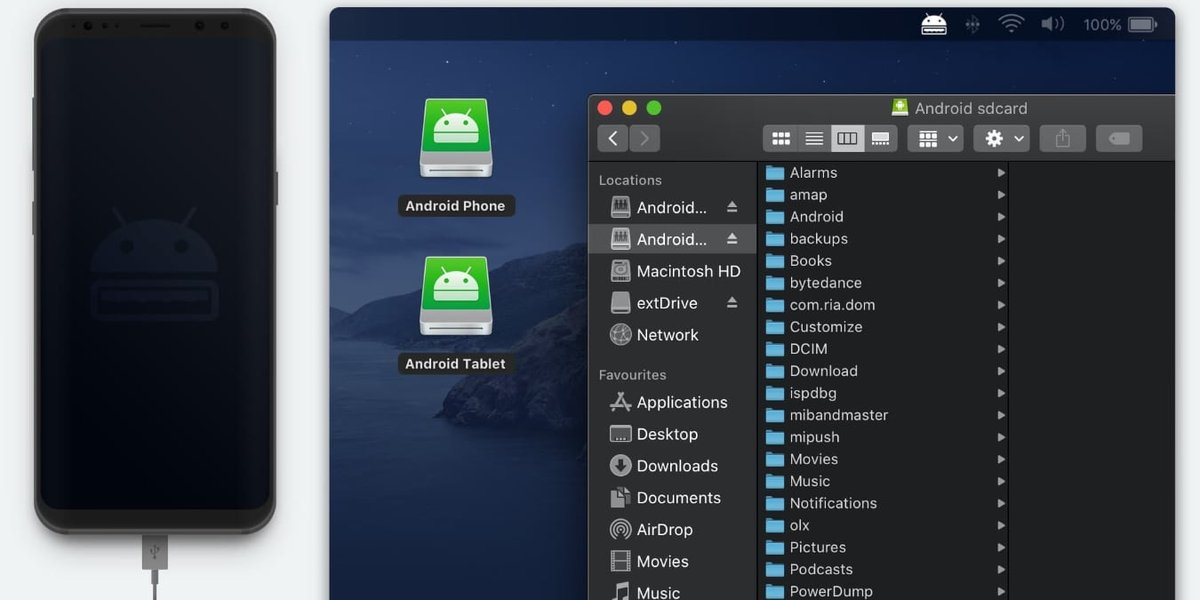
If you use an Android phone with a Mac, you already know the drill. You plug the phone in and nothing happens. Or Google's old Android File Transfer window pops up, hangs for a minute, then tells you it can't reach your storage. Not great when all you wanted was to copy last weekend's photos.
MacDroid is one of the apps built to fix this. It shows your phone in Finder like an external drive, so moving files is the same drag and drop you already do all day. This guide covers what the app does, how to connect over USB and Wi-Fi, what the free and paid versions include, and where it falls short.
The short version
- What it does: mounts your Android device in Finder so you can browse, copy, move and delete files like on a USB drive.
- How it connects: USB (MTP or ADB mode) or Wi-Fi.
- Free vs. PRO: the free version only sends files from Android to Mac. PRO adds Mac-to-Android transfers and editing files directly on the phone.
- Best for: anyone who regularly moves photos, videos, music or documents between the two.
In this article
Why moving files between Android and Mac is such a hassle
macOS and Android were never designed to work together. For years the standard answer was Google's own Android File Transfer app. It's free, but it has barely been updated, and plenty of people report that it fails to detect their phone, freezes halfway through a big copy, or chokes on files over 4 GB.
So people improvise. Every workaround has a catch:
- Email: fine for a PDF, useless for a folder of videos.
- Cloud storage: convenient, but you need a connection, you wait for the upload and the download, and free storage runs out faster than you'd think.
- Bluetooth: painfully slow once the files get big.
- Android File Transfer: works on a good day, which is the problem.
What most people actually want is simple: plug in the phone, open Finder, and see the files. That's the gap MacDroid tries to fill.
What MacDroid does and how to set it up
MacDroid is a Mac app that treats your Android device like a drive. Once it's connected, the phone's storage shows up in Finder and you work with it the way you would with any external disk.
Main features
- Finder integration. No separate window to learn. You browse, copy, move and delete files in the same place you manage everything else on your Mac.
- Two-way transfers (PRO). Send files from Android to Mac and from Mac to Android. The free version only goes one way, from the phone to the computer.
- Edit files in place (PRO). Open a document stored on your phone, change it on your Mac, and save it back without making a local copy first. It's handy for large files and for anything you update often.
- Any file type. Photos, videos, music, documents and whole folders all work.
- MTP and ADB modes. MTP is the standard way phones share files. ADB (Android Debug Bridge) is the more technical option, and it's generally the smoother and faster of the two for big transfers.
- Wi-Fi mode. If your Mac and phone are on the same network, you can skip the cable. This arrived with MacDroid 2.0 in 2024.
- Other MTP devices. It isn't limited to phones. The developer lists tablets, GoPro cameras and Kindles among the supported devices.
Connecting over USB
- Download and install MacDroid on your Mac.
- Plug your Android phone or tablet into the Mac with a USB cable.
- On the phone, tap the notification or prompt and choose File Transfer.
- Open MacDroid and pick MTP or ADB mode.
- Approve any permission prompts on screen.
- Your device now appears in Finder. Drag, drop, done.
Connecting over Wi-Fi
- Make sure MacDroid is installed and both devices are on the same Wi-Fi network.
- On your phone, open Settings, go to About phone, and tap Build number seven times to unlock Developer options. Menu names vary a bit between brands.
- In Developer options, turn on USB debugging and Wireless debugging.
- In MacDroid, choose the Wi-Fi connection option.
- Follow the pairing steps. You may need to scan a QR code or type in a pairing code.
- Once paired, the phone shows up in Finder and you can transfer files without a cable.
A USB cable is still the quickest way to get started.
MacDroid vs. the alternatives
Here's how it stacks up against the other ways people usually move files between the two platforms.
| Feature | MacDroid PRO | Google Android File Transfer | Cloud storage (e.g. Dropbox) | LocalSend |
|---|---|---|---|---|
| Two-way transfer | Yes | Yes, with a 4 GB per-file limit | Yes | Yes |
| Finder integration | Mounts as a drive | Separate window | Through the desktop app or web | None |
| Connection | USB (MTP, ADB) or Wi-Fi | USB (MTP) | Internet | Local Wi-Fi |
| Edit files in place | Yes | No | Only through a synced folder | No |
| Speed and reliability | Fast, especially in ADB mode | Hit or miss | Depends on your internet speed | Fast on a good network |
| Setup | Easy | Simple, but often temperamental | Easy, needs an account | Install on both devices |
| Cost | Free version (one-way). PRO is roughly $19 to $20 a year, with a lifetime option | Free | Free tier, paid plans for more space | Free and open source |
| Updates and support | Regular updates, official support | Rarely updated | Regular updates, official support | Community-driven |
Prices change, so check the official site before you buy.
The takeaway: MacDroid's real edge is the combination of Finder integration, wired and wireless options, and editing in place. LocalSend is a great free pick for quick Wi-Fi transfers, and cloud storage makes sense when you need files on several devices. But if you want your phone to behave like a drive on your Mac, MacDroid is the more complete answer, and it's actively maintained, which Google's app isn't.
Which connection should you use?
MacDroid gives you a few ways to connect. Which one is best depends on how much you're moving and how much setup you're willing to do.
| Connection | Good for | Trade-off |
|---|---|---|
| MTP over USB | Getting started fast. Plug in, choose File Transfer, go. | Can be slower with huge libraries and may ask for permissions more often. |
| ADB over USB | Big transfers and more technical users. It's generally the smoothest option. | You have to enable Developer options and USB debugging first. |
| Wi-Fi | Going cable-free, or when the phone is across the room. | Speed depends on your router, and the first pairing takes a few extra steps. |
| Cloud sync (for comparison) | Reaching files from anywhere and from more than one device. | Needs internet, and your files sit on someone else's server. |
If you're not sure, start with MTP over USB. Switch to ADB if transfers feel sluggish, and use Wi-Fi when you just don't want to hunt for a cable.
Everyday uses
- Photo and video backup. Pull a camera roll onto your Mac before your phone runs out of space.
- Music. Copy albums and playlists to the phone for offline listening.
- Documents. Open a file on the phone, edit it on your Mac, and save it back (PRO).
- Development and debugging. ADB mode gives more technical users deeper access to the file system.
- Other gadgets. Cameras, Kindles and other MTP devices can be handled the same way.
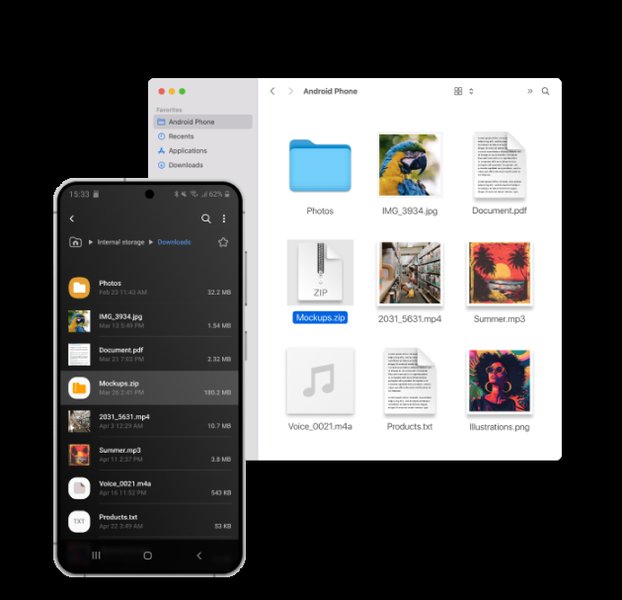
Your phone's storage appears in Finder like any other disk.
What users say, and the downsides
Reviews on Reddit, Trustpilot and tech sites tend to say the same thing: it's a more dependable replacement for Google's app, and mounting the phone in Finder is the feature people like most. A few of those write-ups are sponsored (Make Tech Easier labels its review that way), so read the praise with that in mind.
It isn't perfect, though. Here's what to know before you commit:
- The free version is one-way. If you ever need to send files from your Mac to your phone, you'll need PRO.
- PRO is a subscription by default. The yearly plan renews automatically, so set a reminder if you only need it for a month. A lifetime license is also offered.
- Read the trial terms. The site advertises a 7-day PRO trial, but at least one German reviewer found the trial more limited than expected. Check what you actually get before you rely on it.
- Mac only. It is built for macOS only, so it does nothing for a Windows PC.
Frequently asked questions
What is MacDroid?
Is MacDroid free?
How is it different from Google's Android File Transfer?
Can I send files from my Mac to my Android phone?
What kinds of files can it transfer?
Does it work without a cable?
How many Macs can I use it on?
Final thoughts
Moving files between an Android phone and a Mac shouldn't feel like a chore, and with MacDroid it mostly doesn't. The Finder integration is the big win, since there's nothing new to learn, and the choice between USB and Wi-Fi covers most situations.
Start with the free version if all you need is to pull photos and videos off your phone. If you also want to push files the other way or edit them on the device, PRO is where the app really earns its keep. Just keep the one-way limit and the auto-renewing subscription in mind, and you'll know exactly what you're getting.